 ultimate-guide
Get Professional Resume Template Download: 2026 Guide
Table of Contents
- Why Professional Resume Templates Matter for Job Seekers
- ATS-Friendly Resume Templates: What Hiring Managers Actually Need
- Resume Writing Best Practices for Maximum Impact
- Resume Length Guidelines and Format Choices
- File Formats and Compatibility: PDF, Word, and Google Docs
- How to Customize Your Downloaded Template in Minutes
- Frequently Asked Questions
Last Updated: September 22, 2026
Why Professional Resume Templates Matter for Job Seekers
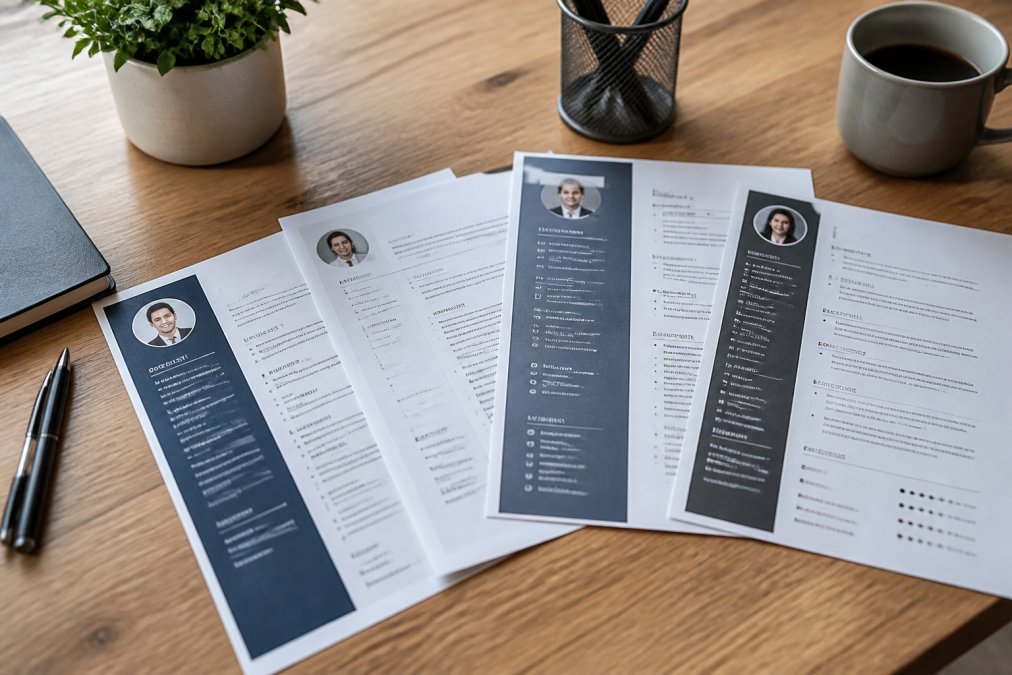
A strong resume is your first impression with hiring managers. Professional resume templates solve the formatting problem by providing a pre-built structure optimized for readability, letting you focus on content that gets interviews.
This guide covers selecting, customizing, and using a professional resume template download that passes ATS systems and impresses hiring managers.
ATS-Friendly Resume Templates: What Hiring Managers Actually Need
How ATS Systems Read Your Resume
Applicant tracking systems scan resumes before humans see them, parsing for keywords and skills that match the job description (Testimony of Heather Tinsley-Fix). If your resume fails ATS screening, it never reaches a hiring manager.
ATS systems struggle with fancy graphics, unusual fonts, tables, and text boxes, they confuse the parser and cause missed sections. An ATS-friendly resume template uses clean, simple formatting that machines can reliably read.
ATS systems need clear text hierarchy, standard fonts, straightforward layout, and consistent spacing, requirements a professional resume template handles automatically.
Template Features That Pass ATS Screening
The best ATS-friendly templates use standard fonts (Arial, Calibri, Times New Roman), avoid headers and text boxes, and structure information with bullet points. Look for clean chronological or modern layouts with clear section headers and adequate white space for scanning.
When you download a professional resume template, test it by opening the file in a plain text editor, readable text without strange characters confirms ATS compatibility.
Resume Writing Best Practices for Maximum Impact
Tailoring Your Resume to the Job Description
Customization is critical, sending identical resumes to every employer reduces your chances of passing ATS screening and catching attention.
Analyze the job description for keywords: skills, software tools, certifications, and responsibilities. These are the exact terms ATS systems search for. If the posting emphasizes "project management" and "Agile," those terms should appear in your resume.
Map your experience to the job description's language. If you've done the work but used different terminology, update your resume to match. This alignment helps both ATS systems and human readers see your fit.
Identify the top 5-7 most important requirements in the job description. Ensure your professional summary, skills section, and work experience directly address these priorities.
Create a custom skills section for each application, reordering to match the job description's priorities rather than alphabetically. This signals you understand the role's requirements.
Structuring Your Work Experience Section
Your work experience section is where hiring managers spend the most time. Include company name, job title, dates, and location, followed by accomplishments.
Use action verbs to start each bullet point. Instead of "Responsible for managing projects," write "Managed cross-functional projects delivering 15% faster completion." Strong verbs include: Accelerated, Achieved, Automated, Built, Delivered, Designed, Drove, Improved, Increased, Launched, Optimized, Reduced, and Streamlined.
Quantify your impact wherever possible. Numbers make your accomplishments concrete and memorable. Include metrics about revenue, efficiency gains, time savings, cost reduction, or quality improvements. This approach works across industries:
- Sales/Revenue: "Generated $1.2M in new business through enterprise account development"
- Operations: "Reduced production costs by 22% through process optimization"
- Customer Service: "Improved customer satisfaction scores from 78% to 91% in 18 months"
- Project Management: "Delivered 12 projects on time and under budget, averaging 8% cost savings"
- Marketing: "Increased website traffic by 156% and qualified leads by 43% year-over-year"
Keep each bullet point to one or two lines, hiring managers skim resumes, so concise language works better than lengthy explanations.
Order bullet points by impact, not chronology. Lead with your most impressive achievement under each role.
Optimizing Your Skills and Achievements
Your skills section should reflect keywords from the job description. When a posting emphasizes specific technical skills or certifications, ensure those exact terms appear in your resume.
Organize skills by category: Technical Skills, Project Management, Languages, and Certifications. This structure helps hiring managers find what they need quickly.
Some resume templates include a dedicated "Key Achievements" section near the top, ensuring hiring managers see your strongest accomplishments first. This works especially well for career changers or candidates with gaps.
Include industry-specific credentials prominently near your name. These trigger ATS keyword matches and establish credibility.
Resume Length Guidelines and Format Choices
One-Page vs. Two-Page Resumes
A one-page resume works best for early-career professionals with less than five years of experience. A two-page resume is appropriate with substantial experience, career changes, or advanced degrees. Ensure both pages contain valuable information, don't pad just to fill space.
Your professional resume template should work cleanly on one page but expand to two without losing professional appearance.
Chronological vs. Modern Resume Layouts
Chronological format lists work history from most recent to oldest, what most hiring managers expect. Modern layouts risk confusing ATS systems. The safest choice is a clean, modern interpretation of chronological format: contemporary design without sacrificing readability or ATS compatibility.
File Formats and Compatibility: PDF, Word, and Google Docs
PDF format preserves formatting perfectly across devices but can trigger ATS parsing issues if fonts aren't embedded. Word documents offer editability but may have compatibility issues. Google Docs provides cloud accessibility but should be converted to PDF before submitting to ensure consistent formatting.
Post-Download Optimization Checklist
After downloading your professional resume template, complete these critical steps before submitting:
File Preparation:
- Save your resume with a professional filename: "FirstName_LastName_Resume.pdf" rather than "Resume_Final_FINAL_v3.pdf." Hiring managers notice disorganized naming conventions.
- If using PDF, verify font embedding by opening the file in a plain text editor. You should see readable text, not garbled characters. Embedded fonts ensure the resume displays identically on all systems.
- Check file size. Your resume should be under 5 MB. Large files may be rejected by applicant tracking systems or email filters.
- Remove metadata from Word documents before converting to PDF. Word files contain edit history, author information, and tracked changes that you may not want visible. Use File > Info > Check for Issues > Inspect Document to remove this data.
Formatting Verification:
- Open your resume in three different applications: the original (Word/Google Docs), a PDF reader, and a plain text editor. Compare how it appears in each. Inconsistencies signal formatting that won't survive ATS parsing.
- Print a test copy and review it on paper. Margins, spacing, and font sizes often look different in print than on screen. Ensure nothing gets cut off at page edges.
- Test hyperlinks if you included any (LinkedIn URL, portfolio website). Click each link to confirm it works and directs to the correct destination.
ATS Compatibility Testing:
- Copy all text from your resume and paste it into a plain text document. If special characters, symbols, or formatting codes appear, your template contains elements that ATS systems may misread.
- Check for hidden text boxes, headers, or footers by selecting all content (Ctrl+A or Cmd+A). These elements often confuse ATS parsers even if they look fine to human readers.
- Verify section headers are formatted as regular text, not as separate text boxes or shapes. ATS systems need to read headers as part of the document flow.
Content Quality:
- Search your resume for inconsistent date formatting. Use the same format throughout (e.g., "January 2022 - Present" rather than mixing "Jan 2022" with "2022-01").
- Confirm all phone numbers, email addresses, and URLs are correct and clickable. A single typo in contact information means a hiring manager can't reach you.
- Remove any placeholder text, sample bullet points, or instructions that came with the template. Many job seekers accidentally submit templates with "[Your achievement here]" still visible.
Your professional resume template download should work cleanly in all three formats, PDF, Word, and Google Docs. When selecting a template, verify it maintains quality formatting whether you save it as a PDF, edit it in Word, or use it in Google Docs. This flexibility ensures you can adapt to whatever submission method an employer requires. However, the optimization steps above are your responsibility after download; they separate polished submissions from careless ones.
How to Customize Your Downloaded Template in Minutes
Step-by-Step Editing Instructions
Start by opening your downloaded template in your preferred application. If you're using Word, Google Docs, or a PDF editor, the process is similar: identify each section and replace the placeholder text with your information.

Begin with your contact information at the top. Replace the sample name with yours, update the phone number and email address, and add your LinkedIn profile URL if you have one. Keep this section clean and scannable, hiring managers need to find your contact details instantly.
Next, work through your professional summary or objective statement if your template includes one.
Personalizing Design Elements Without Breaking ATS Compatibility
While customizing your template, resist the urge to add decorative elements that might confuse ATS systems. Avoid adding graphics, logos, or colored backgrounds unless your template was specifically designed to remain ATS-compatible with these features.
Frequently Asked Questions
Where can I download a professional resume template?
Professional resume templates are available through TemplateForge's template library, which offers downloadable, editable versions in Word, PDF, and Google Docs formats. Simply browse the available options, select a template that matches your career level and industry, and download it immediately. No email signup is required for access. Once downloaded, you can customize the template with your own information, work experience, and skills before submitting to hiring managers.
Are ATS-friendly resume templates really necessary?
Yes, ATS-friendly resume templates significantly improve your chances of passing automated screening systems used by most large employers. These templates use simple formatting, standard fonts, and clear section breaks that applicant tracking systems can parse correctly. Without ATS optimization, your resume may be rejected automatically even if you're a strong candidate. A professional template ensures your qualifications reach human recruiters instead of being filtered out by software.
What's the ideal resume length?
Most job seekers should use a one-page resume, especially if you have fewer than 10 years of experience. Two-page resumes work for senior professionals with extensive work history, but hiring managers typically spend 6-7 seconds on initial screening, so conciseness matters. Focus on relevant achievements and quantifiable results rather than listing every responsibility. A well-organized professional template helps you fit essential information without appearing cramped or overwhelming.
Should I use a PDF or Word document for my resume?
PDF is the safest choice for most applications because it preserves your professional layout and formatting across all devices and email clients. However, some applicant tracking systems process Word documents more reliably. The best approach: check the job posting for specific file format requests. Professional resume templates are typically available in both formats, allowing you to submit whichever version the employer prefers without losing design integrity.