 listicle
Get Ready to Use Notion Templates: 2026 Setup Guide
Table of Contents
- How to Import Notion Templates in Under 5 Minutes
- Customizing Notion Templates for Beginners
- Best Notion Templates for Students
- Organizing Databases and Workspaces After Import
- Filtering, Board View, and Timeline View for Real Workflows
- Template Maintenance, Cleanup, and Security Vetting
- Frequently Asked Questions
Last Updated: September 14, 2026
How to Import Notion Templates in Under 5 Minutes
Getting ready to use Notion templates starts with a single click, and the entire import process takes under five minutes for most users (The ultimate guide to Notion templates). The process is simpler than most people expect: you find a template, duplicate it to your workspace, and start working.
From Marketplace Link to Live Workspace
- Open the template link in your browser and sign in to Notion.
- Click Duplicate in the top-right corner of the preview page.
- Select the workspace where you want the template to live.
- Wait for the pages, databases, and properties to copy over.
- Open the new page from your sidebar and rename it.
That's it. The template arrives fully built, including any relational databases, board views, and page templates the creator configured. If you're sourcing from the Notion template gallery, most listings support one-click duplication. For templates from third-party creators, look for a "Duplicate" link or a shared page URL.
Troubleshooting Template Integration
Three problems account for most failed imports. First, a template that won't duplicate usually means the sharing permissions are off; ask the creator to re-share the page publicly. Second, missing databases after import typically happen when a template uses linked views from a source you don't have access to. Third, broken relations between databases occur when you import two templates that reference each other separately.
A quick fix for the second and third issues: import the parent template first, then the child. Notion links databases by internal ID, and importing out of order breaks those connections.
Customizing Notion Templates for Beginners
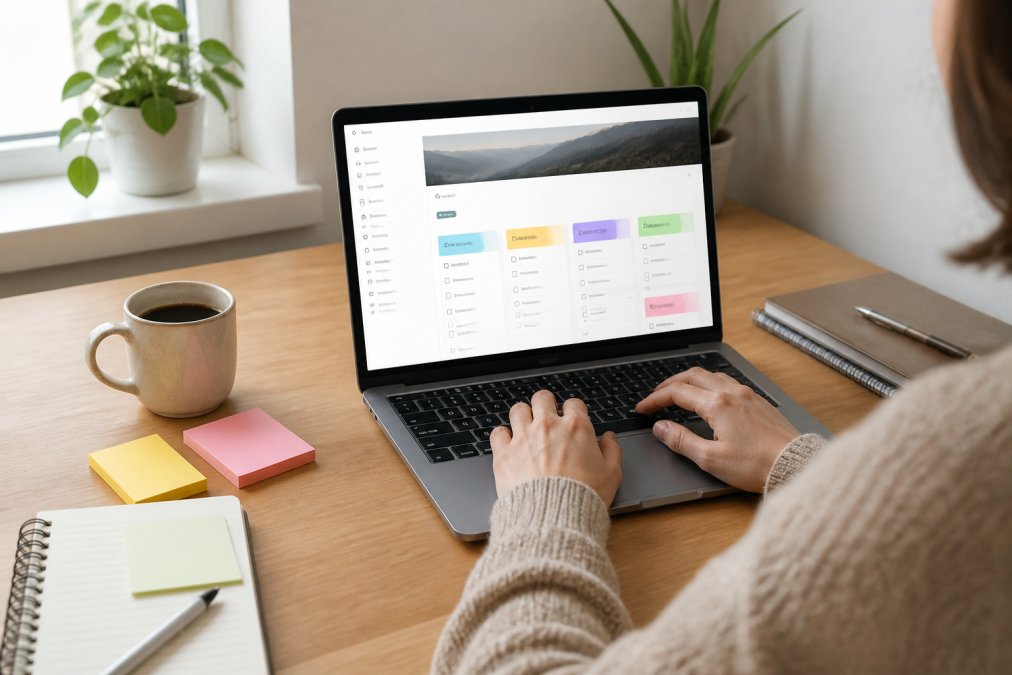
Customizing Notion templates is the step where most guides stop short, and it's the step that determines whether you actually use what you downloaded. The goal isn't to rebuild the template from scratch; it's to swap in your own data, rename a few properties, and hide what you don't need.
Properties, Page Structure, and Database Basics
A property is a column in a Notion database that defines what type of data each entry holds: text, select, date, relation, formula, or rollup. Every template you import comes with a set of properties the creator chose. Your job is to decide which ones match how you actually work.
Start with these adjustments:
- Rename properties to match your vocabulary (e.g., "Status" to "Stage" if you're tracking clients)
- Delete properties you'll never fill in; empty columns add visual noise
- Add a relation property if you want two databases to talk to each other
- Convert a text property to a select property if you find yourself typing the same values
Page structure matters just as much. Most templates nest sub-pages under a parent. If a sub-page feels redundant, drag it out to the sidebar and archive the parent. Notion rewards flat structures for personal use and nested structures for team projects.
Mobile vs. Desktop Optimization
Notion's mobile app renders databases differently than the desktop client. Tables that look clean on a 27-inch monitor can feel cramped on a phone, and board views become horizontal scroll fests. If you rely on your phone for daily check-ins, keep the primary database view simple: a list or a filtered table with three or four visible properties.
Desktop is where you do the heavy lifting: building relations, editing formulas, and setting up automations. Mobile is for quick capture and status updates. Design your template with both in mind, and you'll avoid the common trap of a dashboard that only works at a desk.
Best Notion Templates for Students
The best Notion templates for students handle three jobs at once: class scheduling, assignment tracking, and exam prep. Templates that try to do everything usually fail at all three, so pick a system that matches your semester load.
For coursework, a simple database with properties for course name, due date, and status covers 90% of needs. Add a calendar view for deadlines and a board view grouped by course, and you have a complete assignment tracker without extra complexity.
For exam prep, especially for high-stakes licensing exams in healthcare fields, the template needs to support spaced repetition and question logging. A database of missed questions, tagged by topic and difficulty, turns passive review into active recall. TemplateForge offers study guides and Notion dashboards specifically for this use case, with documented systems that students can import and start using the same day.
Organizing Databases and Workspaces After Import
Organizing databases and workspaces after import is where a good template becomes a great system. The mistake most people make is leaving everything in the default location, which turns the sidebar into a junk drawer within a week.
Here's a structure that scales:
| Layer | Purpose | Example |
|---|---|---|
| Workspace | Top-level container | Personal or Team |
| Section | Grouped by function | Projects, Finance, Learning |
| Hub page | Landing page per section | "Finance Hub" with linked views |
| Database | The actual data | Budget tracker, task list |
| Template | Reusable page inside database | Weekly review, meeting notes |
Move imported templates into the correct section immediately. If a template includes multiple databases, decide which one is the "primary" and make the others linked views of it. Duplicate databases are the single biggest source of clutter in Notion workspaces, and they're easy to avoid if you consolidate on day one.
Filtering, Board View, and Timeline View for Real Workflows
Filtering and views turn a static database into a working system. A database without filters is just a spreadsheet; a database with a saved "Today" filter, a board grouped by status, and a timeline for deadlines is a productivity engine.
Three views cover most workflows:
- Board view for anything with stages (tasks, deals, applications)
- Timeline view for anything with a start and end date (projects, semesters, content calendars)
- Calendar view for anything with a single due date (assignments, bills, appointments)
Add filters on top. A "This Week" filter on a task database, combined with a board grouped by status, gives you a scannable daily dashboard. A "Overdue" filter with a red tag surfaces problems before they compound. Save each filtered view with a clear name so you can switch between them without rebuilding the query.
For freelancers and small business owners, a client database with a board view grouped by project stage, plus a timeline view for deliverables, replaces most project management tools. Add a relation to an income-tracking database, and you have a lightweight CRM without a separate subscription.
Template Maintenance, Cleanup, and Security Vetting
Template maintenance is the part nobody talks about, and it's the reason most imported templates get abandoned within a month. A template isn't a one-time purchase; it's a system that needs pruning. This section covers two important jobs: keeping your workspace from silting up, and vetting a third-party template before it touches anything you care about.
The monthly cleanup audit
Schedule a recurring 20-minute cleanup. The goal is to remove anything you haven't touched, because unused templates don't just take up sidebar space, they create duplicate databases that fragment your data and make search results noisy.
Run through this list once a month:
- Archive databases you haven't opened in 30 days. Notion's sidebar shows recent pages; anything below the fold is a candidate. Archiving is reversible, so err toward archiving rather than deleting.
- Delete properties with zero entries. An empty column is visual noise and, worse, it can break formulas that expect a value.
- Merge duplicate databases. If two templates each shipped their own task database, consolidate into one and convert the second into a linked view. Duplicate databases are the single biggest source of clutter, and they're the hardest to untangle later.
- Re-check relations after any rename. Notion does not auto-update relations when you rename a database, so a five-minute pass prevents broken rollups down the line.
- Audit your page templates. A database can accumulate a dozen page templates over time. Keep the two or three you actually use and delete the rest.
A useful rule of thumb: if you can't name the last time you used a template, archive it. You can always restore it from the archive if you turn out to need it.
Security vetting: what a template can actually carry
When you duplicate a public template, you're not just copying page structure. You're importing whatever the creator embedded, linked, or wrote into that page. Most creators are harmless, but the surface area is real, and it's worth understanding what you're accepting.
Before you duplicate a third-party template into a workspace that holds anything sensitive, inspect these four things:
- Embedded external links and embeds. A template can contain embedded URLs that load external content, or links that point somewhere other than their label suggests. Hover over links before clicking, and check any embed block to see what domain it's pulling from.
- Shared page permissions. After you duplicate, confirm the new page is not still publicly accessible. A template that was shared publicly can carry that sharing state into your workspace if you don't reset it. Open the page's Share menu and verify it's set to private or workspace-only.
- Formulas that reference external data. Some functions can pull in or display data in ways you might not expect. Read any formula that looks unfamiliar before trusting its output, especially in templates from creators you don't know.
- Automations and integrations. If a template includes automations or connected integrations, review what triggers them and what they can access. An automation that fires on an external event can act on your workspace without you watching.
For team workspaces, the safe pattern is to duplicate templates into a sandbox first, a private page only you can see, review them there, then move the vetted version into the shared space. This keeps an unreviewed template from landing in front of your whole team.
According to Notion's security and privacy documentation, workspace admins control sharing permissions at the page level, so a public template duplicated into a private workspace stays private unless you re-share it. That's the mechanism that makes the sandbox approach work: the duplicate inherits your workspace's privacy, not the creator's public setting, as long as you don't re-share it.
Frequently Asked Questions
How do I use Notion templates after I download one?
Open the template link, click the Duplicate button in the top-right corner, and choose the workspace where you want it saved. Notion copies the full page structure, databases, and properties into your sidebar. From there, rename the page, adjust any properties that do not match your workflow, and delete sample rows. The whole process usually takes under five minutes, which is why importing is the fastest part of getting ready to use Notion templates.
Can I customize ready-to-use Notion templates?
Yes. Every duplicated template is fully editable. You can add or remove properties, change board view to timeline view, rewrite page templates, and connect relational databases to new pages. For beginners, start with small changes: rename sections, delete unused sample data, and add one property at a time. Customizing Notion templates for beginners works best when you change one thing, use it for a few days, then adjust again.
Where can I find free and premium Notion templates?
The official Notion Marketplace hosts over 30,000 templates, with free and paid options sorted by category like budgeting, project management, and personal planning. Curated directories such as Notion Everything and Notionland narrow the field with expert reviews. TemplateForge offers documented, tested Notion dashboards and study guides for students, freelancers, and small business owners, with instant download delivery and no email required for free tools.
Are these templates going to be outdated in 6 months?
It depends on the source. Templates built on Notion's core features, like databases, properties, and filtered views, stay functional because those features rarely change. Exam-prep guides and study systems need more frequent updates since licensing content shifts. Before buying, check whether the creator publishes update notes. TemplateForge documents and tests its products, and buyers can review the pricing page for current offerings and update terms.
How long does it take to set up a Notion template after I buy it?
Importing takes under five minutes for most templates. Real setup time goes into customization: renaming properties, deleting sample rows, and adjusting views to match your workflow. Budget 20 to 30 minutes for a simple dashboard and up to an hour for templates with multiple relational databases. If you skip customization and start using the template as-is, you can be working inside it the same day you download it.